Step-by-Step Workflow: Transforming Sequence Diagram Images to Editable UML
1. Upload Sequence Diagram Image and Generate UML via AI
To convert an existing sequence diagram image into an editable format:
- Open the Command Menu in the desktop version of Visual Paradigm.
- Navigate to Unified Platform and select VPasCode.
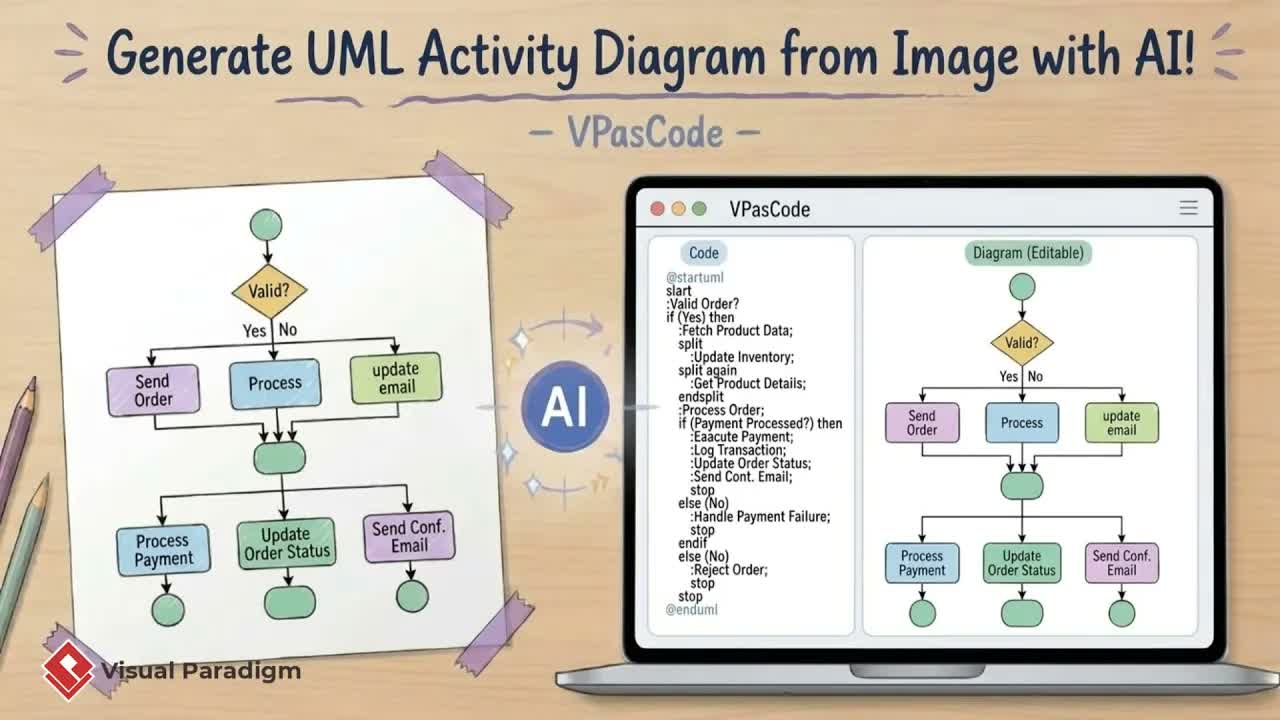
- Click on AI Generate and upload an image of your sequence chart.
- Enter a concise prompt describing what you want to achieve.
Within moments, VPasCode processes the sequence diagram image and outputs both the diagram itself and its underlying source code.
2. Refine Sequence Diagrams Using Code or AI Prompts
Once generated, you can modify your sequence diagram through two direct methods:
- Direct Code Adjustments: Modify text labels or structural elements directly inside the code editor. For example, renaming a lifeline from “check-in portal” to “check-in service” updates the visual canvas immediately.
- Natural Language AI Prompts: Instruct the artificial intelligence assistant to perform modifications automatically, such as adding an alternative stream or branch to handle cases where a booking record is not found.
3. Import Models into Visual Paradigm Desktop
After refining the sequence diagram syntax and layout within VPasCode, click Import to Visual Paradigm. This transfers the sequence model directly into your modeling environment, enabling comprehensive software lifecycle management, team collaboration, and full editing.
4. Document Sequence Architecture with OpenDocs and Pipeline Integration
To finalize your technical specifications and deliver clean documentation:
- Open the sidebar on the right and select Send to Pipeline.
- Return to the Unified Platform and open OpenDocs.
- Select your page, click Insert, choose Pipeline, and select your sequence diagram.
Your AI-generated UML sequence diagram is seamlessly embedded into your team’s official technical documentation, ensuring system designs remain up-to-date and accessible.