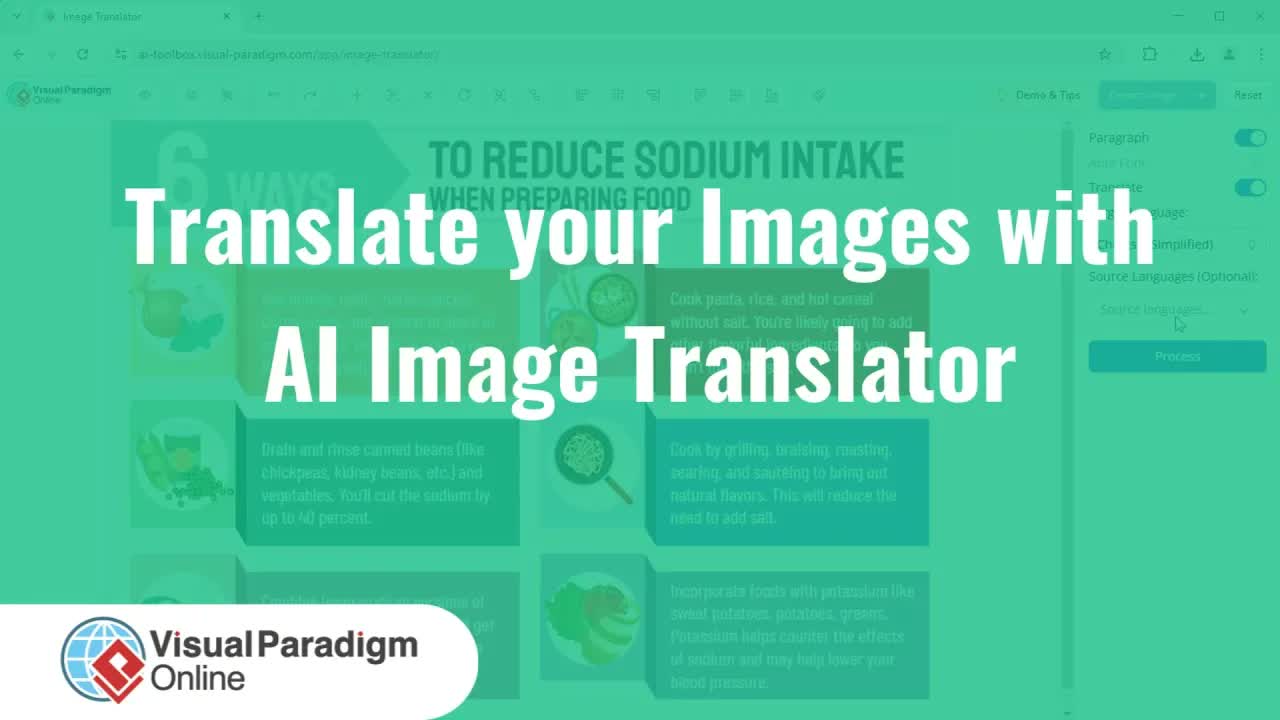
Translating text inside graphics, diagrams, and promotional materials often leads to a common frustration: static, locked text that cannot be edited post-export. When language changes require minor tweaks to layout, font sizing, or wording, starting from scratch in a design tool can consume valuable time. Visual Paradigm Online addresses this challenge with its AI Image Translator, a feature designed to translate text across graphics while preserving original layouts and delivering fully editable text elements.
Why Use Visual Paradigm Online AI Image Translator?
Traditional image translation tools overlay flat text directly onto an image, rendering the content uneditable and frequently disrupting the original layout. Visual Paradigm combines AI-driven multi-language conversion with standard design tools. Key advantages include:
- Layout Preservation: Background graphics, structures, and overall alignment remain intact during translation.
- Fully Editable Text Output: Translated text is split into distinct, selectable blocks for straightforward modifications to content, fonts, colors, and layout.
- Precision Image Repair Utilities: Integrated tools fix artifacts or restore background elements affected during text extraction.
- Flexible Content Grouping: Text can be translated line-by-line or combined as structured paragraphs depending on document requirements.
How to Translate Images in a Few Clicks
Translating an image and refining its typography is straightforward. Follow these steps to convert and format multi-language image content:
- Upload Image: Open the AI Image Translator within Visual Paradigm Online and upload your target image file.
- Configure Translation Settings: Select your source and target languages. Enable or disable auto paragraph detection depending on whether you want text processed as grouped paragraphs or independent lines.
- Process the File: Click process to initiate automatic text recognition and translation.
- Refine Content & Layout: Click directly into the generated text blocks to edit wording, change typography, adjust colors, or re-align elements.
- Export: Save and export your polished, localized image in your preferred file format.
Core Editing & Touch-Up Features
Once an image is processed, built-in features help refine both the design elements and the text overlay.
1. Repair & Draw Tool
During text extraction, small artifacts or unwanted background fragments may occasionally remain. The Repair & Draw tool allows you to select a custom brush stroke size, mark unwanted remnants directly on the canvas, and run the automated repair process to clean up the area.
2. Rub to Reveal Feature
When text is positioned close to detailed graphic elements, sections of the underlying background might be inadvertently removed during text separation. The Rub to Reveal feature acts as a precision restoration tool. By brushing over affected areas with a customizable stroke or airbrush tool, you can reveal and restore the original underlying graphic details.
3. Typography & Styling Controls
Visual presentation is essential when localizing visual assets. You can adjust text directly on the canvas or through the dedicated content pane for immediate updates:
- Font Style & Size: Choose fonts that match your brand identity or fit the new language layout.
- Color & Alignment: Adjust text color and spatial alignment to keep the visual hierarchy clear.
- Block Resizing: Drag text block boundaries to automatically rewrap text within designated margins.
4. Merge & Split Text Blocks
Translation length varies across languages, which can impact layout structure. You can re-organize how text is segmented:
- Merge Blocks: Combine multiple single-line text blocks into a single paragraph block. Select the desired blocks and use the merge command; the AI updates the translation flow automatically.
- Split Blocks: Divide multi-sentence blocks into separate units. Select the block and choose the split option to isolate text into distinct, moveable elements.
Practical Applications & Use Cases
The flexibility of editable localized images serves various personal and professional documentation needs:
- Multilingual Marketing Materials: Rapidly translate promotional banners, social media graphics, and flyers while maintaining consistent visual branding.
- Educational Content & Project Media: Convert instructional diagrams, infographics, and study charts into different languages for international audiences.
- Technical Documentation & Workflows: Update system diagrams, process flowcharts, and technical documentation without rebuilding visual assets. If you need to manage comprehensive project documentation, check out tools like OpenDocs or edit markdown documentation using the OpenDocs Editor.
Explore More Visual Paradigm Solutions
To learn more about related design, development, and AI documentation tools, explore our resource links below:
- Get started with desktop design and modeling tools by downloading Visual Paradigm Download options.
- Try interactive assistance for project workflows with our AI Chatbot Tool or access our main Chatbot interface.
- Manage and edit project code online through VPasCode or the VPasCode Editor.