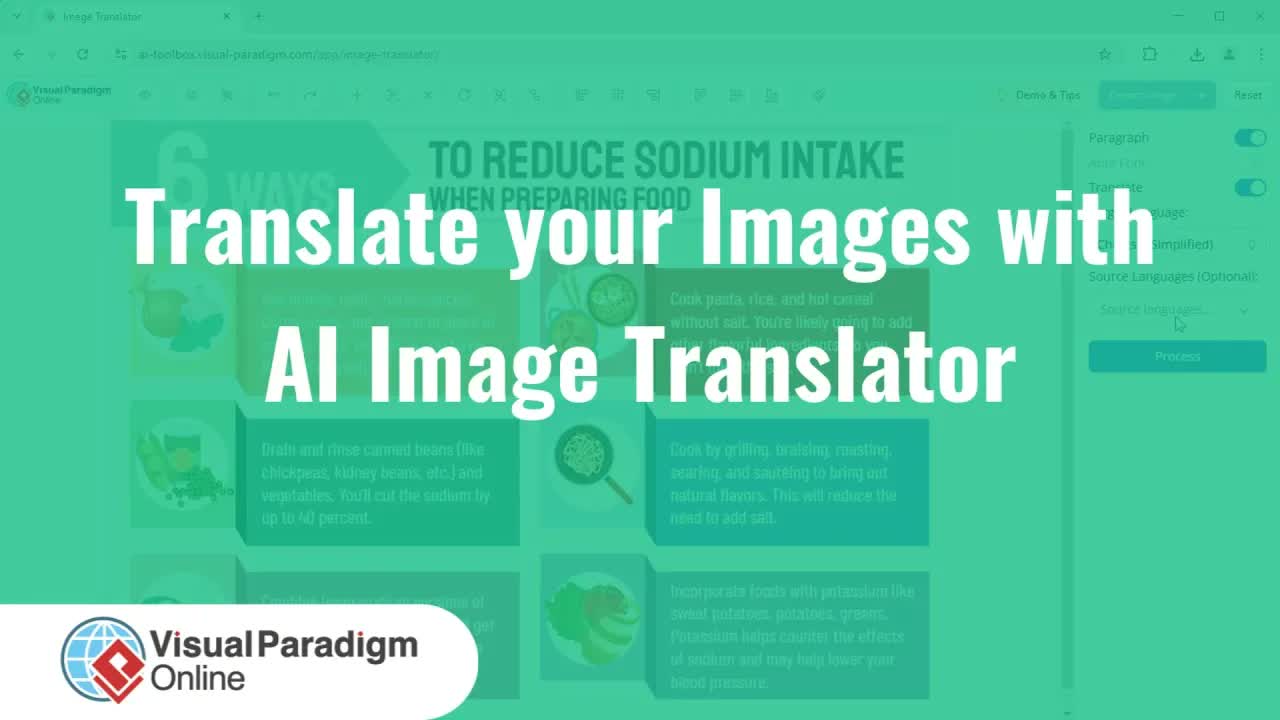
Translating technical diagrams, system models, and flowcharts into foreign languages often creates significant formatting headaches. Conventional image translation software typically replaces text directly over existing pixels, leading to overlapping labels, misaligned text boxes, and broken diagram lines that ruin the clarity of your visual models.
The AI Image Translator in Visual Paradigm Online solves these issues by separating translated text into fully editable containers. This allows users to easily translate technical diagrams into target languages, unify typography, adjust line breaks, and perfectly center text within diagram shapes—all while keeping the underlying visual layout pristine and professional.
Key Benefits of Editable AI Diagram Translation
- Full Text Editing Control: Reposition, format, and align translated labels without modifying underlying graphic shapes.
- Preserved Visual Hierarchy: Standardize font styles and unify varying font sizes across the canvas automatically.
- Granular Line Division: Resize individual text block boundaries to control line breaks and prevent overlapping lines.
- High-Precision Alignment: Center-align text blocks effortlessly within container shapes to maintain clean architectural schematics.
Core Features of Visual Paradigm Online AI Image Translator
- One-Click Batch Selection: Click “Select All” to apply global font choices, text alignments, and styling rules across all translated labels.
- Set to Same Size Utility: Automatically unifies multiple selected text blocks of varying sizes to a balanced, middle-ground font size.
- Dynamic Text Box Resizing: Control text line breaks dynamically by adjusting bounding box handles.
- Direct Image Export: Download high-resolution localized visual assets directly to your local device.
Practical Use Cases
- Enterprise ArchiMate Diagram Localization: Translate complex application usage diagrams and enterprise architecture models for global business units.
- Multilingual System Documentation: Adapt software development flowcharts, network topologies, and UML diagrams for distributed engineering teams.
- Centralized Knowledge Repository Management: Embed translated technical visuals straight into enterprise knowledge bases using OpenDocs and the OpenDocs Editor.
Step-by-Step Walkthrough: Translating and Formatting a Diagram
Step 1: Select Your Diagram and Target Language
Launch the AI Image Translator and click Translate Now. Browse the sample library (e.g., technical diagrams like ArchiMate application usage), select your target language, and click Process to start automated translation.
Step 2: Unify Global Font and Alignment Settings
Once translation completes, click Select All to highlight every text container on the canvas. Set your desired global font family and text alignment options across all selected labels.
Step 3: Standardize Font Sizes
With multiple text blocks selected, click the Set to Same Size button. The engine automatically standardizes all selected text labels to a uniform middle font size to establish consistent visual hierarchy.
Step 4: Adjust Text Box Sizes and Center Positioning
Adjust the side handles of individual text blocks to control line divisions and prevent long words from overflowing shape borders. Click and drag text blocks to ensure labels remain perfectly centered within diagram containers.
Step 5: Export Finalized Localized Image
Review the canvas layout to ensure all labels are neat and legible. Click Export Image to download your localized diagram directly to your device.
Explore Next Steps
Streamline your visual localization pipeline today with Visual Paradigm Online. To explore enterprise-grade desktop modeling suites, download Visual Paradigm Download or visit Visual Paradigm for comprehensive system modeling tools.
For more AI-assisted design resources, try our AI Chatbot Tool, chat directly via Chatbot, or optimize your software modeling workflow using VPasCode and the VPasCode Editor.