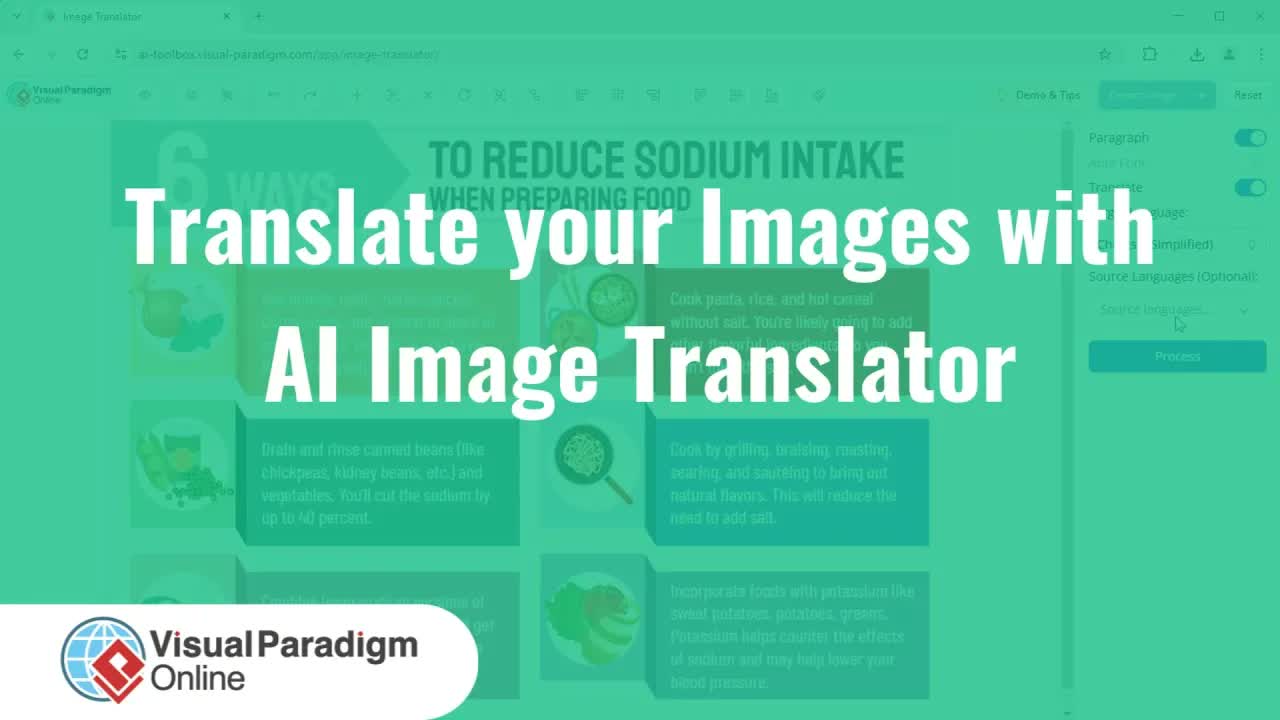
Translating text within complex diagrams often causes severe visual clutter. Target languages frequently require longer phrases than original source text, resulting in overlapping shapes, awkward line breaks, and misaligned labels that obscure critical workflow paths.
The AI Image Translator in Visual Paradigm Online solves this challenge by isolating translated elements into fully editable text blocks. Rather than static image overlays, users gain complete access to precision alignment features, line wrap controls, and standardized spatial positioning tools to maintain a clean, professional aesthetic across localized assets.
Key Benefits of Precise Alignment Tools
- Clutter-Free Visuals: Eliminate text overlap on connector lines and diagram nodes to maintain diagram legibility.
- Standardized Layouts: Apply consistent font choices, standard sizes, and alignment rules across all translated labels instantly.
- Flexible Spatial Control: Position text blocks with granular precision to accommodate varying target language phrase lengths.
- Fast Localized Output: Produce high-quality, publish-ready visual assets without manually recreating diagrams from scratch.
Core Features of the Visual Paradigm Online Alignment Engine
- Batch Font & Size Standardization: Select all translated text blocks simultaneously to apply unified font families and standardize font sizes across the canvas.
- Text Block Alignment Utilities: Align entire text blocks relative to diagram containers and connector pathways with single-click positioning options.
- Dynamic Line Wrapping: Insert manual or dynamic line breaks into expanded translated phrases to preserve original bounding box constraints.
- High-Resolution Vector Export: Download finalized localized diagrams in crisp, clear image formats ready for presentation and publishing.
Practical Use Cases
- System Architecture Localization: Tidy up localized UML models, network topologies, and technical schematics for global development teams.
- Multilingual Process Flowcharts: Ensure operational swimlane diagrams and decision trees remain structured and legible across different languages.
- Technical Knowledge Management: Embed polished, localized visual assets directly into enterprise documentation using OpenDocs and the OpenDocs Editor.
Step-by-Step Walkthrough: Tidying Up Translated Text Blocks
Step 1: Upload and Translate Your Diagram
Open the AI Image Translator, choose your desired target language, select your diagram file, and click Process to initiate translation.
Step 2: Standardize Fonts and Font Sizes
Click Select All to highlight every translated text element. Select your preferred font family and click Set to Same Size to establish a consistent typographical baseline across the canvas.
Step 3: Adjust Line Breaks for Longer Translations
For target languages with longer word lengths, click into expanded text blocks and insert line breaks to divide text across multiple lines, preventing labels from crossing over diagram paths.
Step 4: Align Text Blocks and Export
Select key text block groups and apply text block alignment controls to position labels neatly relative to surrounding graphics. Fine-tune remaining elements to ensure balanced spacing, then click Export Image to download the localized diagram.
Explore Next Steps
Simplify your visual translation workflow today with the AI Image Translator in Visual Paradigm Online. To discover our enterprise desktop software suite and advanced UML modeling capabilities, visit Visual Paradigm or download the software directly at Visual Paradigm Download.
For additional AI modeling utilities, explore our AI Chatbot Tool, interact via Chatbot, or optimize your code-first projects using VPasCode and the VPasCode Editor.