What Is Hierarchical Querying?
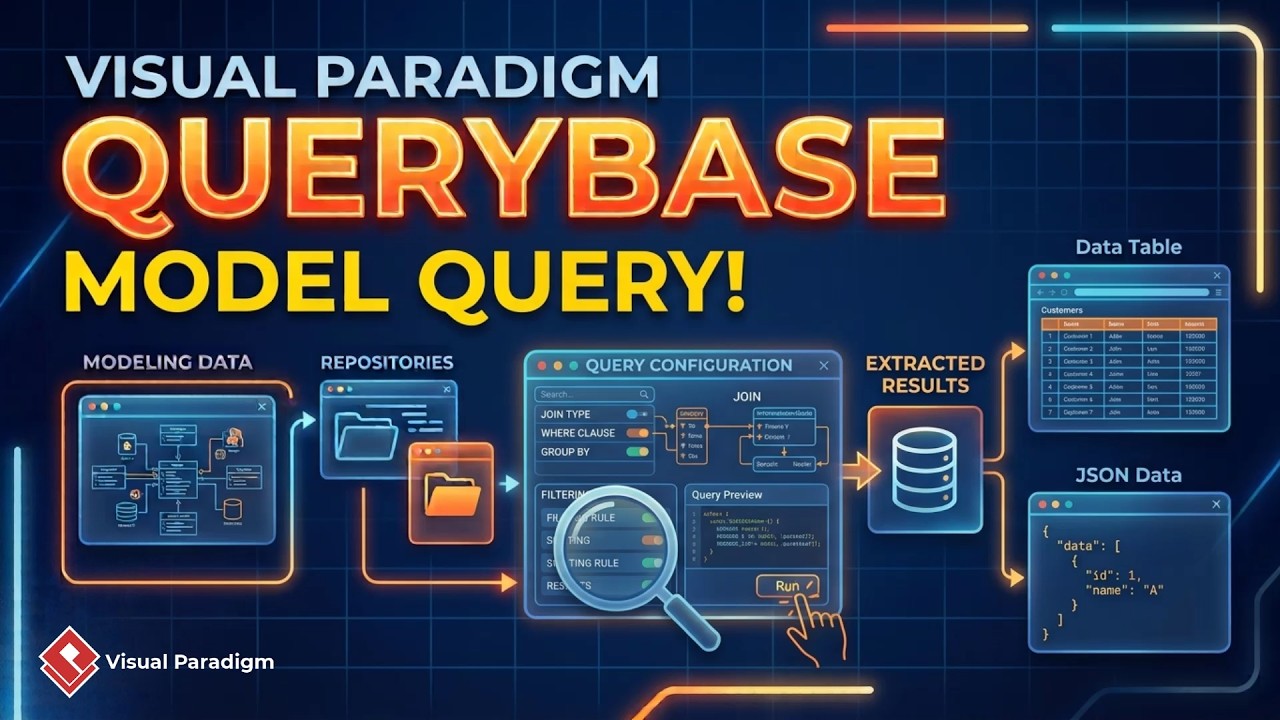
Hierarchical querying organizes repository search results into multiple levels instead of presenting them as a flat list. This allows you to examine how model content is arranged and how matched elements relate to their surrounding projects and diagrams.
A query can cover up to four levels:
- Project: The repository project containing the model content.
- Diagram: The diagram where a matching element is located.
- Element: The model element that meets the specified criteria.
- Sub-element: A more detailed component contained within or associated with an element.
You can begin at a higher level and progressively refine the query as you move deeper. Intermediate levels may also be skipped, allowing you to start directly at the level most relevant to your analysis.
Why Use Query by Hierarchy?
Large repositories often contain many projects, diagrams, and model elements. A conventional search may identify matching items but provide limited context about where those items are located or how they fit into the overall model structure.
Query by hierarchy helps you:
- Locate model elements across multiple projects and diagrams.
- Understand the context surrounding search results.
- Filter results by element type and attributes.
- Trace relationships between diagrams, elements, and sub-elements.
- Explore architecture structures and dependencies more efficiently.
- Generate machine-readable results for further processing.
- Save and reuse queries for repeatable analysis.
This approach is especially useful when working with enterprise architecture models, ArchiMate repositories, large system designs, and other complex modeling environments.
How to Open Query by Hierarchy
- Log in to your Visual Paradigm repository.
- Click the Ellipses button.
- Select QueryBase.
- Choose the workspace you want to access.
- Enter the corporate dashboard.
- Click Tools in the upper-right corner.
- Select Query by Hierarchy.
The Query by Hierarchy tool opens with a query construction pane on the right side of the interface. This pane is where you define the levels, conditions, and criteria for your query.
How to Build a Hierarchical Query
When building a hierarchical query, begin by deciding what you want to locate and how much surrounding context you need. You can start with a project, diagram, element, or sub-element and then add conditions at the appropriate levels.
1. Select the Starting Level
Choose the level at which your search should begin. Starting at the project level is useful when you want to examine results across an entire repository. Starting at the element level is more efficient when you already know the type of model content you need to find.
2. Add Search Conditions
Define criteria such as element type, name, or attribute values. Conditions can be refined as the query moves through the hierarchy, helping you narrow broad repository content to a specific set of results.
3. Refine the Hierarchy
Add conditions at deeper levels when you need more context. For example, you may search for a specific element type and then examine the projects and diagrams in which those elements appear.
4. Skip Unnecessary Levels
You do not have to use every level in the hierarchy. If project or diagram information is not required, you can skip those levels and query directly for the elements or sub-elements that matter to your analysis.
Example: Finding ArchiMate Node Elements
Suppose you want to locate ArchiMate node elements whose names contain the word server. You can configure the query to search for:
- An ArchiMate node element type.
- A name condition containing the word “server.”
After running the query, QueryBase returns the matching data in JSON format. The results identify the ArchiMate node elements that satisfy the conditions and show where they are located within the repository.
In a large repository, the results may reveal that matching node elements are distributed across multiple projects and diagrams. This provides useful context that may not be apparent from a simple list of matching names.
View Results as a Hierarchical Graph
After executing a query, select the Graph button to display the matching results as a hierarchical structure. The graph shows how the results are organized across projects, diagrams, elements, and sub-elements.
The hierarchical graph can help you:
- See which projects contain matching elements.
- Identify the diagrams associated with those elements.
- Understand the location and context of model content.
- Trace architecture structures and dependencies.
- Navigate complex repositories without losing the broader context.
When you find a relevant diagram, click its diagram link to open it directly. This lets you move from repository-level analysis to visual inspection of the underlying model.
Export Query Results as JSON
Query results can be exported in JSON format for additional processing or integration with other tools. JSON is useful when you need to manipulate the returned data, analyze it programmatically, or include it in a broader reporting workflow.
Exported results may support tasks such as:
- Creating customized reports.
- Performing additional data analysis.
- Integrating model information into external applications.
- Comparing results between different queries or projects.
- Automating repository analysis workflows.
Save and Reuse Query Configurations
Hierarchical queries can be saved for future use. Click the Export Query button in the upper-right corner to save the query configuration as a JSON file.
Saving a query configuration allows you to:
- Repeat the same analysis later.
- Reuse a query across different projects.
- Standardize repository searches across a team.
- Share query logic with other modelers and analysts.
- Maintain consistent criteria for recurring investigations.
To reuse an existing query, import its previously saved JSON file into QueryBase. This avoids rebuilding the query manually and helps make model analysis more consistent and repeatable.
Best Practices for Hierarchical Queries
- Start with a clear objective: Decide whether you are looking for a specific element, examining project coverage, or tracing relationships.
- Use precise conditions: Combine element types, names, and attributes to reduce irrelevant results.
- Choose the right starting level: Begin at the project or diagram level for broad discovery, or start at the element level for targeted searches.
- Use the graph view for context: Switch from JSON results to the hierarchical graph when you need to understand repository structure.
- Open related diagrams: Inspect the original diagram to validate the meaning and context of a matched element.
- Save repeatable queries: Export query configurations when the same analysis may be needed again.
- Keep result data separate from query logic: Export results for analysis and export query configurations for reuse.
Frequently Asked Questions
What is Query by Hierarchy in Visual Paradigm?
Query by Hierarchy is a QueryBase feature that searches repository models across multiple levels, including projects, diagrams, elements, and sub-elements. It presents results in JSON and hierarchical graph formats.
How many levels can a hierarchical query contain?
A hierarchical query can span up to four levels: project, diagram, element, and sub-element.
Can I skip levels when creating a query?
Yes. You can skip intermediate levels or begin directly at the level that is most relevant to your search.
Can QueryBase search for a specific model element type?
Yes. You can define conditions based on model element types, names, and other available attributes. For example, you can search for ArchiMate node elements with names containing a specific word.
How are hierarchical query results displayed?
Query results are returned in JSON format and can also be displayed as a hierarchical graph. The graph shows how matched elements are organized within projects and diagrams.
Can I open the diagram containing a matched element?
Yes. Select the diagram link in the results to open the related diagram and inspect the matched element in its modeling context.
Can I save a hierarchical query for later use?
Yes. Use the Export Query function to save the query configuration as a JSON file. You can import the file later to reuse the same query.
Summary
Visual Paradigm QueryBase’s hierarchical querying capability provides a practical way to explore complex model repositories. By organizing searches across projects, diagrams, elements, and sub-elements, it reveals not only which items match your criteria but also where those items belong within the broader model structure.
With JSON results, hierarchical graph visualization, direct diagram navigation, and reusable query configurations, Query by Hierarchy supports efficient repository discovery, architecture analysis, dependency tracing, and repeatable model investigation.
Learn more about QueryBase at https://www.visual-paradigm.com/features/querybase/.