System design and architecture ideation often involve multi-step conversational iterations—from generating high-level use case models to detailing specific interaction sequences. Capturing the full context of these design discussions, along with the underlying diagram scripts, is crucial for maintaining clear software documentation. Visual Paradigm enables teams to export entire AI diagramming sessions directly into Markdown format.
This guide demonstrates how to build multi-diagram workflows using the AI Chatbot and export the complete conversation history—including text explanations and diagram-as-code scripts—into clean, documentation-ready Markdown files.
Key Benefits of Exporting AI Sessions to Markdown
Exporting conversational design sessions into Markdown delivers several key advantages for developers, system analysts, and technical writers:
- Complete Context Retention: Preserve the entire ideation journey, from initial prompts and structural revisions to detailed component explanations.
- Diagram-as-Code Native: Automatically package code-based diagram formats—such as PlantUML, Mermaid, and Graphviz—alongside explanatory text.
- Developer Environment Integration: Seamlessly open exported
.md files inside code editors like VS Code for local editing and git-based version control.
- LLM & Pipeline Readability: Feed clean Markdown files into external AI models or documentation platforms like the OpenDocs Editor for further analysis and publishing.
Step-by-Step Guide: Building and Exporting AI Diagram Sessions
Step 1: Generate an Initial Use Case Diagram
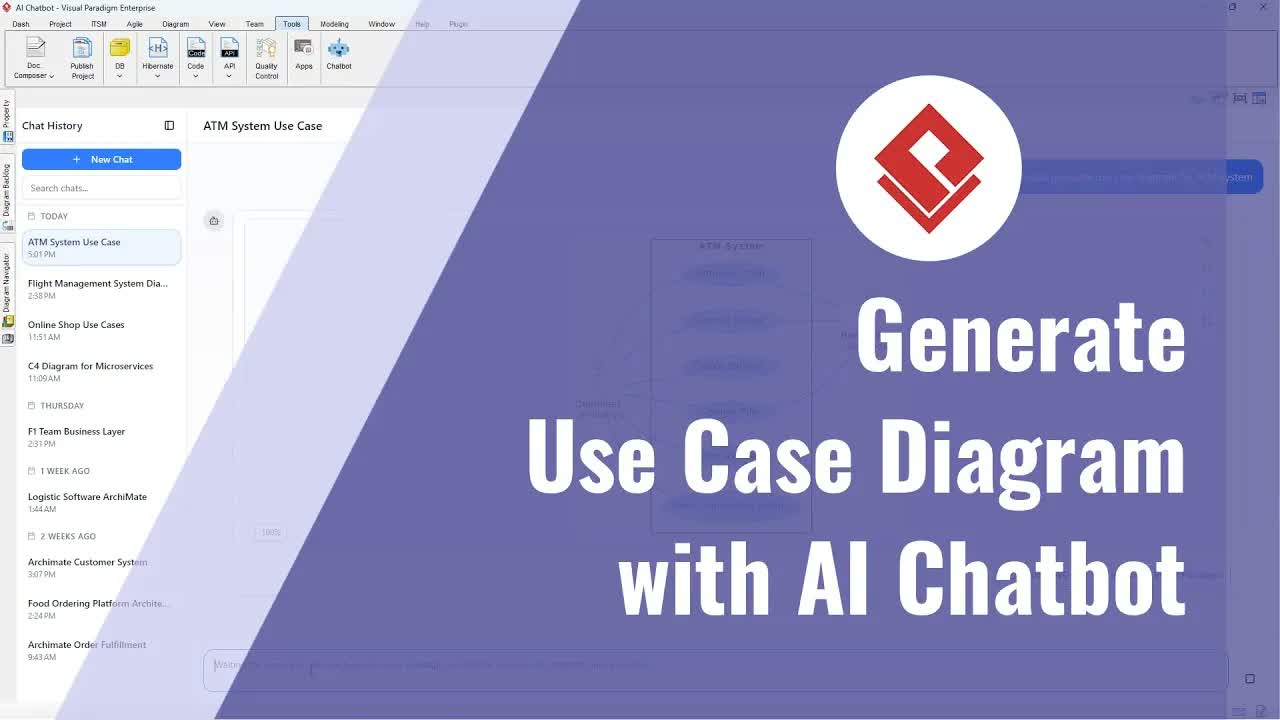
Open the AI Chatbot Tool in Visual Paradigm Online or your desktop environment. Enter a prompt to construct a baseline model, such as: “Generate a UML Use Case Diagram for an ATM System.” The AI engine will instantly render the system boundaries, actors, and core use cases.
Step 2: Iterate in the Same Session with Sequence Diagrams
Maintain session continuity by diving deeper into specific system behaviors within the same conversation thread:
- Prompt the chatbot: “Create a Sequence Diagram for the ‘Withdraw Cash’ use case.”
- The AI engine generates the sequential message exchanges, lifelines, and activation blocks directly below your previous diagram.
Step 3: Request AI Explanations for Key Components
Ask the Chatbot to clarify architectural responsibilities and component roles:
- Type a query such as: “Explain the role of the ATM Controller lifeline in this sequence.”
- The AI returns a detailed technical breakdown directly within the chat timeline.
Step 4: Export Conversation to Markdown
To export the complete session history:
- Click the Export Session option and select Markdown (.md).
- The chatbot packages all text prompts, technical responses, and diagram-as-code scripts into a single structured Markdown document.
- Open the exported file in VS Code or your preferred text editor to review the structured code blocks and system explanations.
Practical Applications for Software Documentation
- Architecture Decision Records (ADRs): Archive technical design discussions and trade-offs alongside generated visual models.
- Version-Controlled Repositories: Commit diagram code and session logs directly into Git repositories for continuous documentation tracking.
- Unified Publishing Pipelines: Import exported Markdown files directly into OpenDocs to incorporate conversational insights into enterprise architecture manuals.
Streamline Your Design Documentation Today
Capture every step of your architectural ideation workflow and turn AI diagramming sessions into structured Markdown documentation effortlessly.
Explore tools and start documenting today: