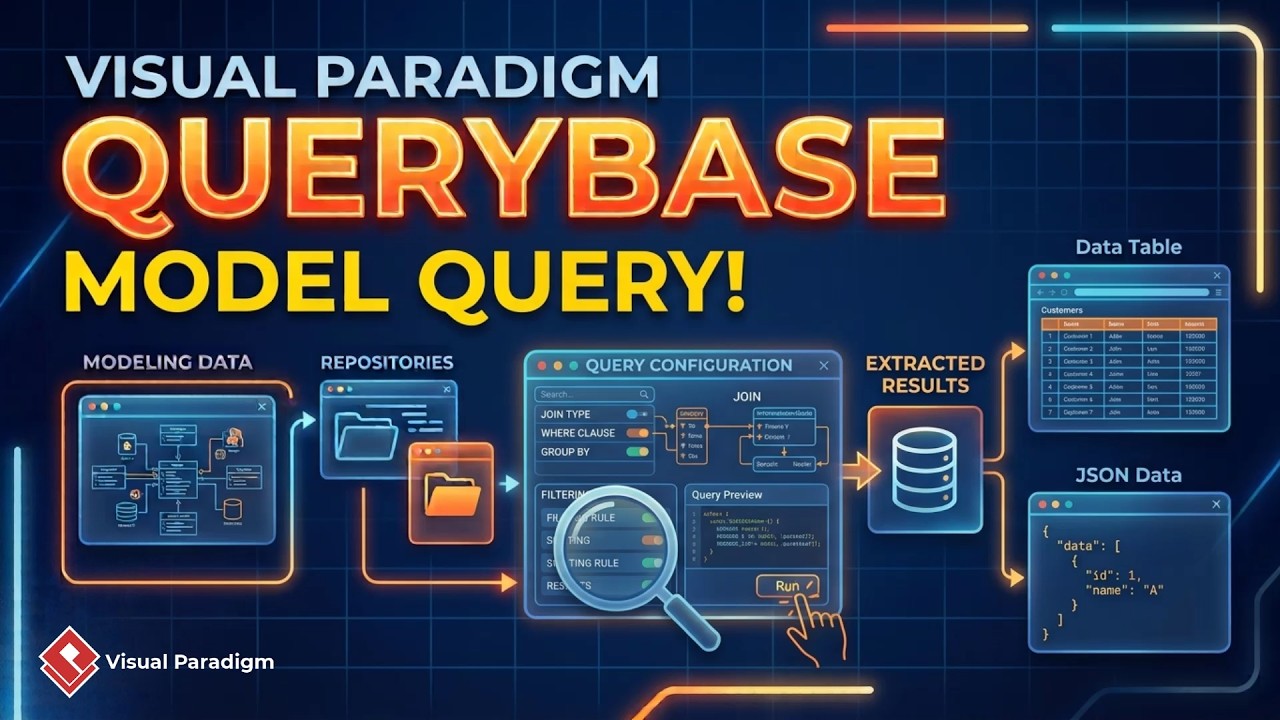
Visual Paradigm QueryBase helps teams explore, analyze, and navigate complex models stored in a repository. With its model query tool, you can create multi-level queries, follow relationships between model elements, refine results step by step, and save query definitions for future use.
What Is Visual Paradigm QueryBase?
QueryBase is a repository model exploration and analysis feature in Visual Paradigm. It allows you to search across projects, diagrams, model elements, relationships, and sub-elements using configurable query blocks.
Unlike a one-time model search, QueryBase allows multiple queries to be chained together. Each query uses the results from the previous step, enabling you to investigate model structures layer by layer. This is especially useful for architecture analysis, dependency tracing, impact analysis, and repository-wide audits.
Why Use Multi-Level Model Queries?
Large modeling repositories often contain thousands of elements distributed across multiple projects and diagrams. A simple keyword search may identify individual elements, but it may not reveal how those elements are connected.
Multi-level queries provide a more precise way to discover related model information. You can start with a broad search, follow a relationship, and then filter the connected elements by type or property. This approach helps answer questions such as:
- Which model elements contain a specific keyword?
- Which relationships connect those elements to other components?
- Which software, systems, or architecture components are associated with them?
- Where are specific dependencies used across the repository?
- Which model structures require further review or auditing?
Query Levels Supported by QueryBase
A model query can be constructed across four main levels:
- Project: Search or filter projects in the repository.
- Diagram: Identify diagrams that meet specific conditions.
- Diagram element: Find elements contained in diagrams, such as nodes, systems, applications, or other model objects.
- Sub-element: Refine the search by examining elements nested within a model structure.
You can begin at a high-level query and progressively move deeper into the model. QueryBase also allows you to skip levels or start from an intermediate level, depending on the information you need to investigate.
How to Create a Chained Model Query
1. Open QueryBase
- Log in to your repository.
- Open Unified Platform.
- Click the ellipsis button.
- Select QueryBase.
- Choose the workspace you want to access.
After entering the corporate dashboard, open the query tool by selecting Tools in the upper-right corner and then choosing Query by Model.
2. Add a Model Query Block
In the model query tool, start by selecting a Model Query block. The configuration panel on the right allows you to define the conditions for the query.
You can configure the query by selecting the appropriate model level and applying filters such as model type, element name, or other available constraints.
3. Define the Initial Query
The example query begins by searching across all projects in the repository for architect node elements whose names contain the word “server.”
This first query establishes the starting point for the investigation. After configuring the conditions, click the Play button to execute it. The matching elements will appear in the query results table.
4. Add a Relationship Query
To investigate how the matching nodes are connected, click Add Chain Query. This creates a new query based on the results from the previous step.
QueryBase supports several types of chained queries, including:
- Model elements
- Relationships
- Sub-diagrams
- Child elements
- References
- Elements used as a type
For this example, select Relationship and filter the results to include only Assignment relationships. Click Play again to display the assignment relationships connected to the nodes identified in the first query.
5. Find the Connected Model Elements
Click Add Chain Query once more to continue the analysis. This time, choose Model and apply a filter for System Software.
The final results identify system software elements connected to architect node elements containing “server” in their names through assignment relationships.
The complete query chain can be understood as:
- Find architect node elements with “server” in the name.
- Follow their assignment relationships.
- Return the connected system software elements.
QueryBase Query Chain Example
| Query step | Query target | Purpose |
|---|---|---|
| Step 1 | Architect node elements | Find elements with “server” in their names across the repository |
| Step 2 | Assignment relationships | Identify relationships connected to the matching nodes |
| Step 3 | System software elements | Find the software elements connected through those assignments |
Extend Queries Across Additional Levels
Query chains are not limited to the three steps shown in the example. You can continue adding chain queries to explore additional levels of your repository model.
This makes QueryBase suitable for complex investigations where you need to trace information through several model objects and relationships. For example, a query may begin with a project, move to a diagram, identify a component, follow a dependency, and then locate the child elements or references associated with that component.
By expanding the query chain as needed, you can progressively narrow broad repository data into focused, meaningful results.
Export Query Results as JSON
QueryBase allows you to export query results as JSON. This can support further processing, reporting, automation, and integration with other systems.
JSON output is useful when query results need to be consumed by scripts, applications, data-processing workflows, or external analysis tools.
Save and Reuse Query Definitions
QueryBase queries are not limited to one-time use. You can save the complete query chain as a JSON file and load it again whenever you need it.
- Click Export Query in the upper-right corner to save the query definition as a JSON file.
- When you need to reuse the query, click Import Query.
- Select the saved JSON file to load the query configuration.
- Run or further modify the imported query as required.
Reusable query definitions help standardize repository analysis across projects and teams. They also make recurring audits and architecture reviews more efficient.
Practical Applications of QueryBase
Visual Paradigm QueryBase can be used in many enterprise modeling and software architecture scenarios, including:
- Architecture analysis: Locate systems, applications, components, and infrastructure elements based on defined criteria.
- Dependency tracing: Follow relationships to understand how model elements depend on one another.
- Impact analysis: Identify connected elements that may be affected by a design or architecture change.
- Repository audits: Search across multiple projects for elements that meet specific naming, type, or relationship conditions.
- Model governance: Create repeatable queries for checking modeling conventions and repository consistency.
- Team collaboration: Share saved query definitions so team members can perform consistent analysis.
- Automation and integration: Export results as JSON for use in downstream tools and custom workflows.
Best Practices for Building Effective Model Queries
- Begin with a clear analysis objective before creating the query chain.
- Start with a broad but meaningful model filter, then refine the results in later steps.
- Use relationships to trace how model elements are connected rather than relying only on element names.
- Choose the appropriate query level for each step: project, diagram, element, or sub-element.
- Run each query step separately to verify that the results match your expectations.
- Use precise relationship and model-type filters to reduce irrelevant results.
- Save frequently used query chains as JSON files for repeatable analysis.
- Export results as JSON when they need to be processed, integrated, or archived.
Frequently Asked Questions
What is QueryBase used for?
QueryBase is used to search, analyze, and navigate model information stored in a Visual Paradigm repository. It supports multi-level queries that can follow relationships between projects, diagrams, elements, and sub-elements.
Can QueryBase search across multiple projects?
Yes. A model query can search across all projects in the repository, allowing users to perform repository-wide model discovery and analysis.
What is a chained query?
A chained query is a sequence of connected query steps. Each step uses the results from the preceding step to investigate a deeper level of the model or follow a relationship to related elements.
Which relationship types can be queried?
QueryBase allows users to query relationships and apply relationship-specific filters, such as filtering for assignment relationships. The available relationship options depend on the model content being analyzed.
Can QueryBase queries be reused?
Yes. You can export a complete query chain as a JSON file and import it later for reuse, modification, or sharing with other team members.
Can query results be exported?
Yes. Query results can be exported as JSON for further processing, automation, reporting, or integration with other systems.
How many query levels can be chained?
QueryBase supports continued query expansion, allowing users to build query chains across multiple levels as required by the analysis.
Conclusion
Visual Paradigm QueryBase provides a flexible way to perform detailed model discovery across large repositories. By combining model filters, relationship queries, and reusable JSON-based query definitions, teams can move beyond simple searches and investigate complex model structures systematically.
Whether you are tracing architecture dependencies, reviewing system relationships, auditing repository content, or preparing data for automation, multi-level QueryBase queries help turn interconnected model information into actionable insight.