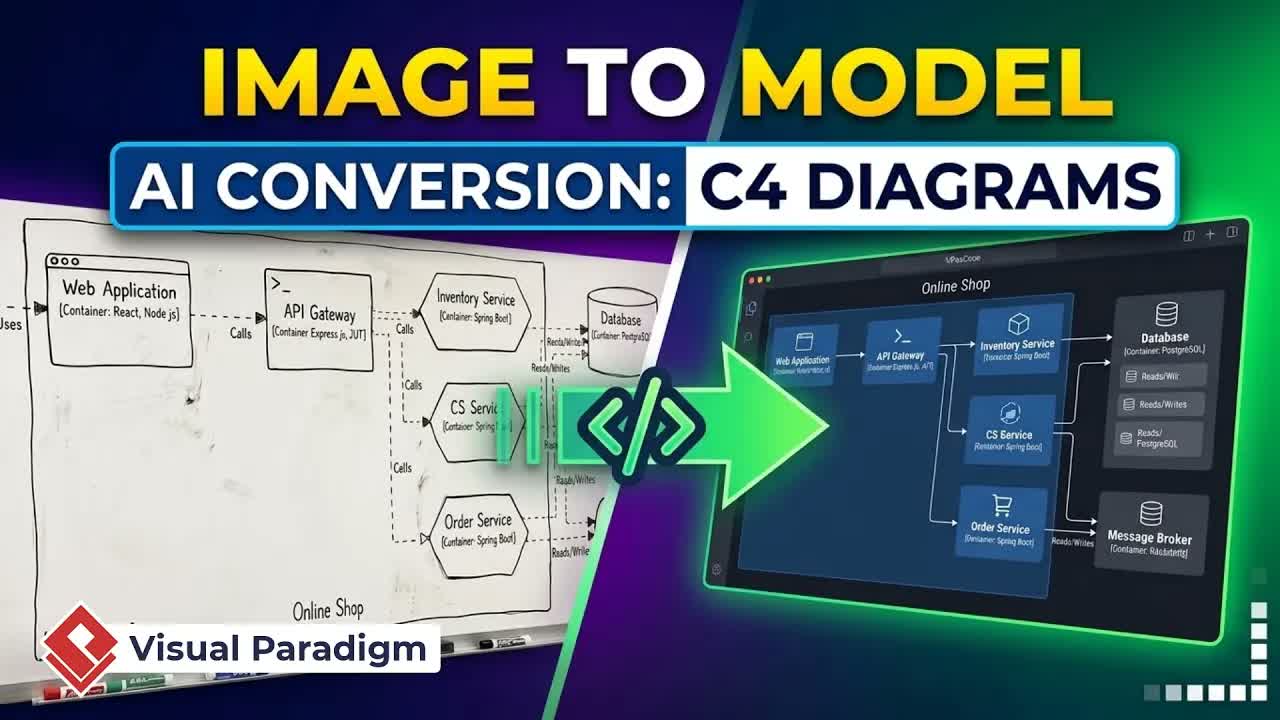
Designing UML class diagrams manually can be time-consuming, especially when mapping out complex software architectures from scratch. Software developers, system architects, and students often spend significant time defining classes, attributes, operations, and relationships before drafting a complete structural model. By using the AI Assisted UML Class Diagram Generator in Visual Paradigm Online, you can convert high-level project descriptions into structured class diagrams in just a few simple steps.
This guide provides a step-by-step walkthrough of how to use AI-powered scope generation, class identification, member auditing, rule checking, and visual diagram rendering to speed up your software design workflow.
Why Automate UML Class Diagram Design with AI?
UML class diagrams serve as the blueprint for object-oriented software engineering. However, building these models manually presents common challenges:
- Manual Scoping Bottlenecks: Defining initial system boundaries, entities, and attributes takes valuable time during project initiation.
- Inconsistent Member Identification: Missing key class operations or properties leads to incomplete system models and architectural oversights.
- Quality Assurance Complexity: Reviewing structural compliance across multiple class relationships requires careful inspection against standard UML rules.
Automating diagram generation with an AI generator addresses these challenges by parsing simple project goals, proposing relevant entities and members, verifying model quality, and rendering clean, editable software diagrams instantly.
Key Features of the AI Assisted UML Class Diagram Generator
The AI UML modeling utility in Visual Paradigm Online delivers several key capabilities designed to accelerate software architecture modeling:
- Automated Purpose and Scope Drafting: Enter a brief description to let AI draft the complete operational purpose and scope for your system diagram.
- Interactive Class Identification: The AI engine extracts entity classes automatically, giving you full control to add or remove entities.
- Comprehensive Class Member Review: Inspect, refine, add, or delete identified attributes and operations for every class entity.
- Relationship Mapping & Overview: Review auto-detected class associations, inheritance, and dependencies before rendering.
- Built-In Quality Checks: Automatically validate your model against common structural design rules to maintain diagram integrity.
- AI-Generated Notes: Add contextual explanatory notes to your diagram manually or generate them using AI.
- Direct Editor Import: Import generated class diagrams straight into the online editor for advanced visual styling and cloud storage.
Step-by-Step Guide: Generating UML Class Diagrams with AI
Follow these steps to turn high-level project goals into fully editable UML class diagrams.
Step 1: Launch the AI Class Diagram Generator
- Log into your account workspace dashboard.
- Click the Create with AI button.
- Locate the AI Assisted UML Class Diagram Generator and click Start Now to open the app interface.
Step 2: Define Purpose and Scope
- Fill in the explicit purpose and scope of your diagram directly.
- Alternatively, enter a simple project summary and let the AI draft the complete purpose and scope statements automatically.
- Click the AI Generate Diagram from Scope button to proceed.
Step 3: Review Classes, Attributes, Operations, and Relationships
- Identify Classes: Review the entity classes detected by the AI engine. Add any missing classes or remove unneeded entities.
- Review Attributes: Inspect the proposed data properties for each class entity and modify them as necessary.
- Review Operations: Check the identified methods and functions, adding or deleting class members to fit your system logic.
- Review Relationships: Verify the proposed associations and connections between classes, reviewing the overall summary provided by the AI engine.
Step 4: Execute Quality Checks and Add Notes
- Allow the tool to perform a quality check on your model based on standard UML modeling rules.
- Add explanatory notes to clarify specific structural design decisions. Type notes manually or generate them using AI.
Step 5: Render and Import into Visual Paradigm Online
- Click Next and then press Render Diagram to construct the visual class diagram.
- Review the rendered model generated by the AI engine.
- Click the Import to Visual Paradigm button to bring the diagram directly into your web editor.
- Perform any additional layout edits, custom styling, or annotation adjustments, and save the finalized diagram to your workspace for future project use.
Practical Application Scenarios
AI-assisted class diagramming streamlines object-oriented design across multiple development stages:
- Software Architecture Scoping: Rapidly turn client feature requests or product requirement documents into preliminary structural UML diagrams.
- Academic & Professional Training: Help students and junior engineers understand class associations, encapsulation, and inheritance patterns faster.
- Refactoring & System Maintenance: Map existing domain entities quickly during system redesigns to evaluate class responsibilities before writing code.
Streamline Your Software Architecture Workflow
Integrating AI assistance into your software design process helps teams transition from concepts to actionable blueprints with ease. Visual Paradigm provides a robust ecosystem of design, modeling, and documentation tools created for modern engineering workflows.
Explore these resources to build, manage, and share your software designs: