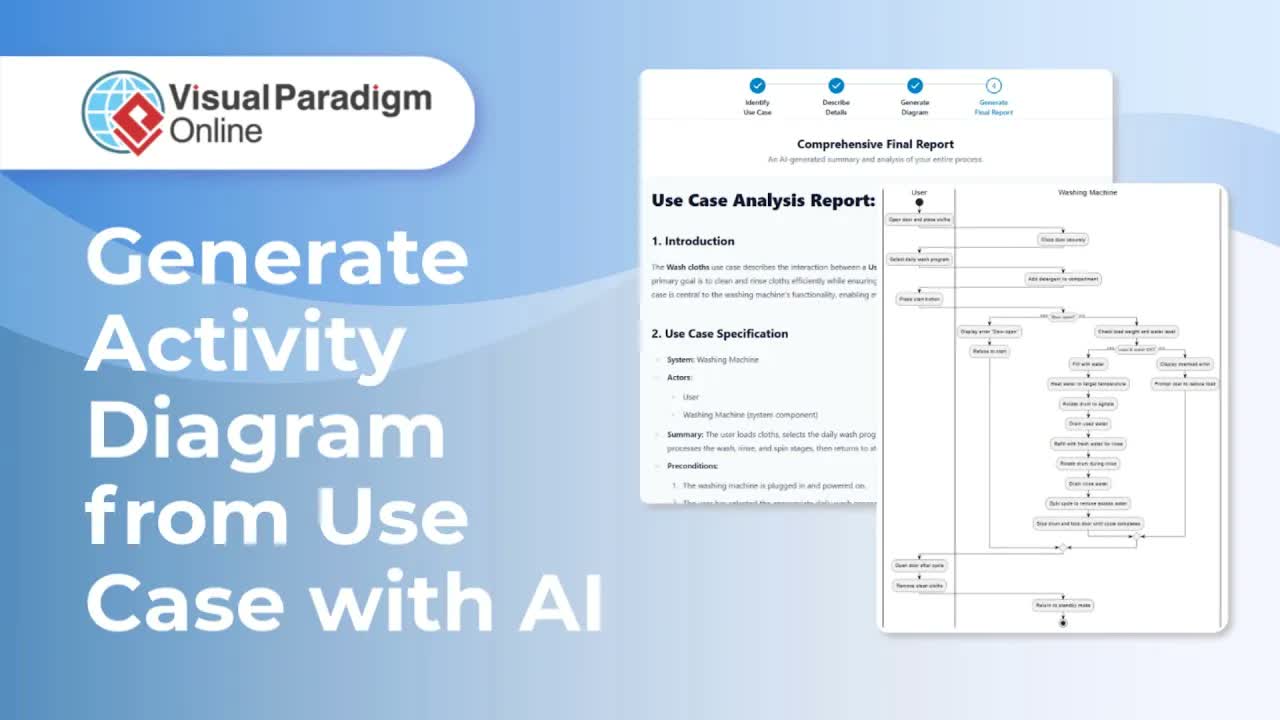
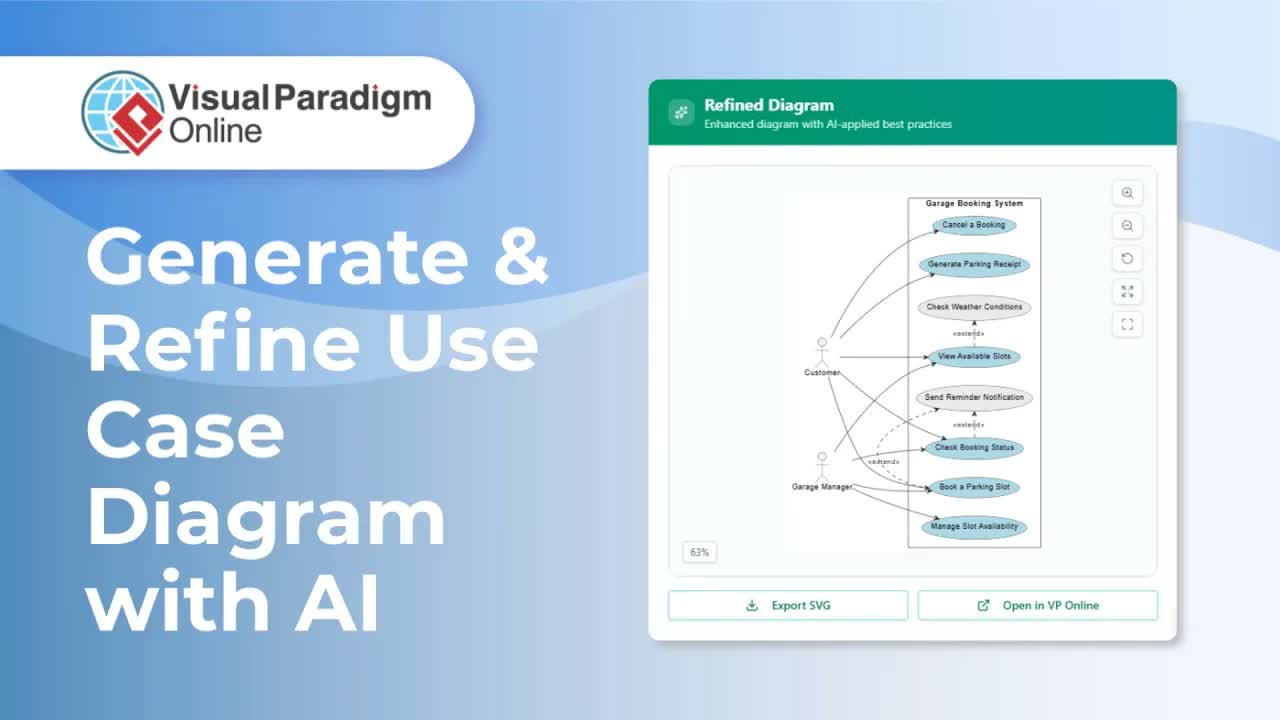
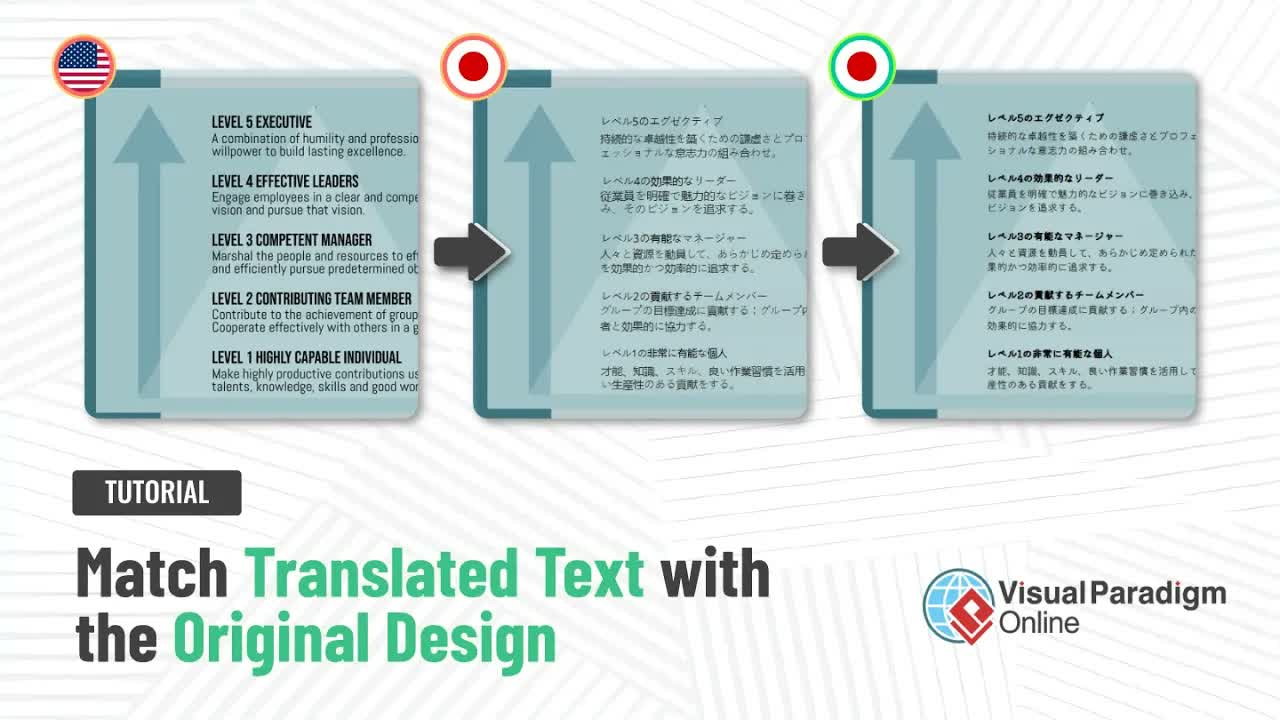
Visualizing complex concepts directly within technical and business documentation dramatically enhances reader comprehension and speeds up project workflows. Visual Paradigm Online provides a seamless ecosystem through OpenDocs, enabling teams to build clear, dynamic diagrams directly inside their documents. Whether you need reusable visual assets across multiple project files or quick, localized graphics, OpenDocs combines manual editing flexibility with instant AI generation.
Understanding Diagram Options in OpenDocs
When creating visual documentation in OpenDocs, you can choose between two main structural approaches based on your project requirements:
- Reusable Diagram Components: Created as standalone component pages, these diagrams exist independently within your document hierarchy. They can be inserted into multiple pages across your workspace, making them ideal for standard architecture frameworks, shared workflow models, or recurring system specifications.
- Ad-Hoc Diagrams: Created directly on a specific page, these diagrams are bound exclusively to the document section where they are placed. They are perfect for single-use illustrations, specific contextual notes, or localized visual breakdowns.
Creating a Reusable Diagram Component
To design a diagram asset that can be embedded in multiple places across your documentation, follow these step-by-step instructions:
- Navigate to your document navigation tree, locate the parent node, and click the Plus (+) icon.
- Select New Component Page from the menu options.
- Choose your preferred diagram type from the available workspace templates to launch the editing environment.
- Construct your diagram manually using the available shape libraries, or select the Create with AI button in the top right corner to instantly generate visual structures from text descriptions.
- Once your diagram layout is finished, click Save and select the left arrow icon to exit the editor.
Inserting Reusable Diagram Components into Document Pages
After creating a reusable component, you can effortlessly embed it anywhere across your document pages:
- Open the target page in the OpenDocs Editor.
- Position your cursor at the desired insertion location.
- Click Insert in the top toolbar, navigate to Diagram, and choose Import Existing.
- Select your created diagram component from the repository to place it directly into the page content.
Building Ad-Hoc Diagrams Directly on a Page
If a visual asset is unique to a single section and does not require central management or reuse elsewhere, you can create an ad-hoc diagram immediately on the active page:
- While editing your page, navigate to the top menu and click Insert.
- Hover over Diagrams and choose the desired diagram type to open the interactive canvas.
- Design your diagram using manual layout tools or leverage AI visual generation to construct shapes and connectors automatically.
- Click Save and close the editor interface. The newly generated diagram will instantly embed into your active document section.
Accelerating Workflows with AI Diagram Generation
The integrated Create with AI functionality transforms textual ideas into structured visuals within seconds. Instead of dragging and connecting shapes manually, teams can enter concise descriptions of their systems or workflows to generate preliminary diagram structures automatically. This capability significantly reduces manual layout effort, maintains visual consistency across technical assets, and lets authors focus on refining high-value documentation content.
Key Benefits of OpenDocs Diagramming
- Centralized Asset Management: Updating a reusable component ensures visual consistency across all embedded instances throughout your team’s knowledge base.
- Contextual Flexibility: Switch effortlessly between standalone visual components and fast, embedded ad-hoc illustrations.
- AI-Assisted Efficiency: Generate complete diagram layouts on demand using the integrated visual AI assistant.
- Unified Content Creation: Eliminate the need to switch between external diagramming software and separate document editors.
Get Started with Visual Paradigm Tools
Enhance your documentation and software design workflows with the full suite of visual modeling and documentation tools from Visual Paradigm: