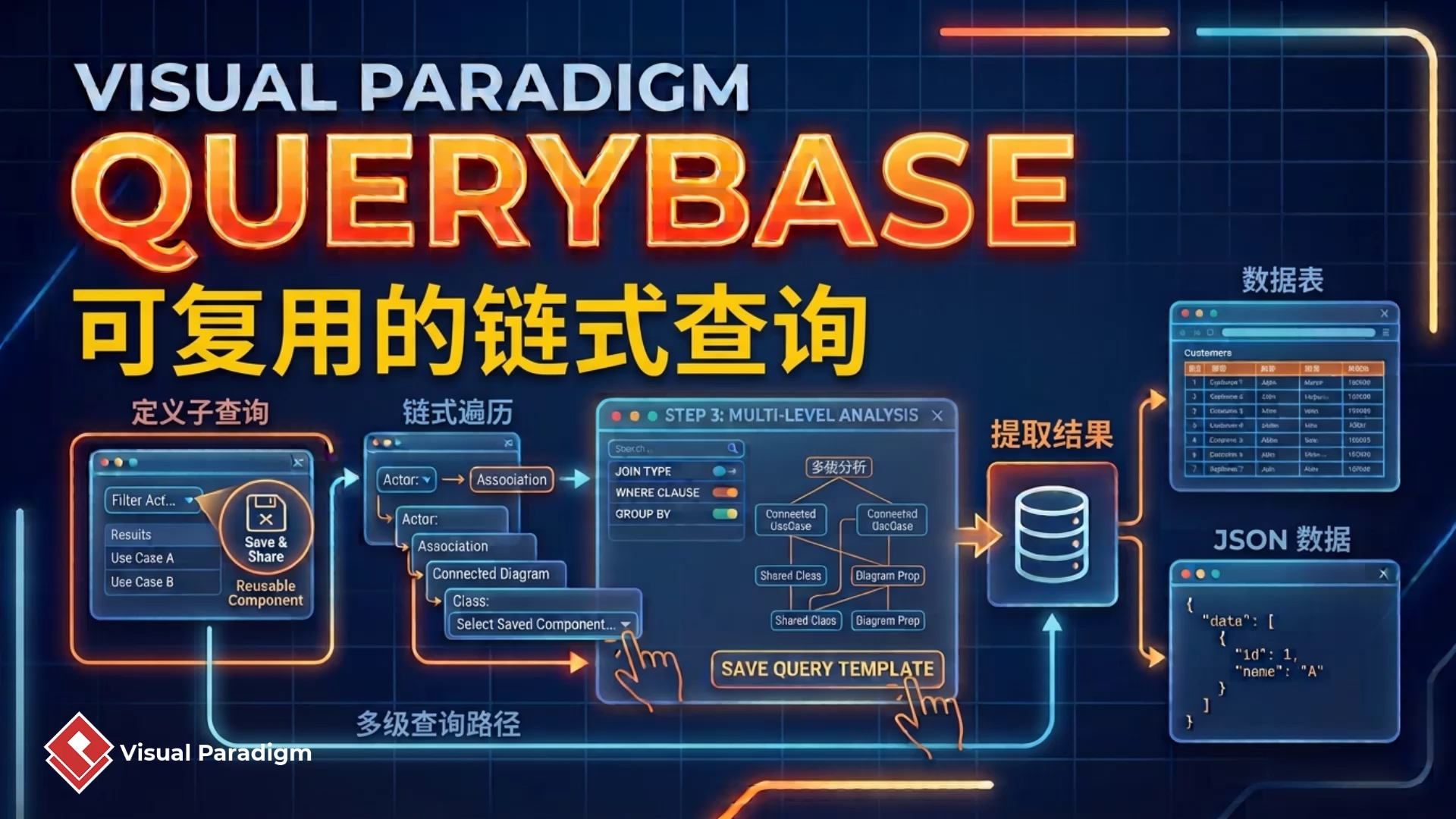
What Is Query Base?
Query Base is a repository search feature that enables you to find model
elements using configurable search conditions. Instead of manually opening
projects and diagrams one by one, you can define search criteria and
retrieve matching content from across your workspace.
The Query Base configurator supports four query levels:
- Project: Search for a specific project in the repository.
- Diagram: Narrow the search to diagrams within matching projects.
- Element: Find model elements such as entities, tasks, or other diagram objects.
- Sub-element: Search detailed properties, such as entity columns or other element-level attributes.
You can begin with a broad project-level search and progressively refine
it, skip intermediate levels, or start directly from an element or
sub-element query.
How to Open Query Base
- Log in to your Visual Paradigm repository.
- Open Unified Platform.
- Click the ellipsis button.
- Select Query Base.
- Choose the workspace you want to explore.
- Enter the corporate dashboard.
- Click the magnifying glass icon in the upper-right corner to open the Query Configurator.
Build a Multi-Level Repository Query
The Query Configurator lets you combine search conditions across multiple
levels. This makes it possible to start with a general repository search
and refine the results until you locate the exact model elements you need.
Example: Search by Project, Diagram, and Element
Suppose you want to find model elements related to a specific database
design. You can create a query using the following conditions:
- Search for projects with a name containing data.
- Within those projects, search for diagrams containing sales.
- Within the matching diagrams, search for elements containing reason.
The results can identify entities and foreign key relationships containing
the specified term in the Sales diagram under the matching database design
project.
This project-to-diagram-to-element approach is useful when you know the
general location of a model element but need to narrow down a large
repository quickly.
Skip Intermediate Query Levels
Query Base does not require you to use every query level. You can specify
a project and search directly for elements or tasks without filtering the
diagrams in between.
Example: Find Tasks Across BPMN Diagrams
To locate tasks in a BPMN model:
- Search for a project with a name containing BP.
- Search for tasks containing pizza.
This type of query can return tasks located across multiple diagrams within
the matching BPMN project. It is especially useful when the diagram
containing the required task is unknown.
Start a Query at an Intermediate Level
You can also begin directly with an element or sub-element query. This is
useful when you know the property or object you are looking for but do not
need to restrict the search to a particular project or diagram.
Example: Search Entity Columns by Type and Length
You can search for entity columns where the type contains
envir and the length is greater than or equal to
50.
This approach is helpful for identifying database columns that meet
specific design or data-definition requirements.
Example: Find Elements by Name
To search broadly across the repository, define a condition that finds any
element whose name contains server. Query Base will return
matching elements regardless of their project or diagram location.
Refine and Edit Search Filters
Query conditions can be adjusted directly when you need to modify the
search. For example, you can change an element-name filter from
server to customer to find customer-related
elements across multiple projects.
Editing filters allows you to reuse an existing query structure instead of
creating a new query from the beginning. This makes it easier to explore
related terminology, compare results, and investigate different areas of
a model repository.
Work with Query Results
Sort the Results
Click any column header in the results table to sort the returned records.
Sorting helps you organize results by attributes such as project, diagram,
element name, or other available fields.
Open Model Element Details
Select a result to open a detailed view of the corresponding model element
in a new browser tab. From there, you can inspect the element and its
context in the repository.
Export Results as JSON
Query results can be exported in JSON format. JSON export is useful when
you need to process query data with other tools, create custom reports, or
integrate repository search results into an external workflow.
Practical Query Base Workflow
- Define the search scope: Decide whether to search across a workspace, project, diagram, element, or sub-element.
- Enter identifying terms: Use name fragments or property values that are likely to match the required content.
- Add constraints: Refine the query with additional conditions, such as element type, column type, or length.
- Review the results: Inspect the result table and confirm that the returned projects, diagrams, and elements are relevant.
- Sort for easier analysis: Click a column header to organize the result set.
- Open individual details: Select a result to investigate the model element in a separate browser tab.
- Export when needed: Download the results as JSON for reporting, automation, or integration.
Benefits of Using Visual Paradigm Query Base
- Finds model elements quickly across a centralized repository.
- Supports project, diagram, element, and sub-element searches.
- Allows broad searches and highly specific property-based queries.
- Lets users skip intermediate query levels when appropriate.
- Makes it easy to revise filters and investigate related results.
- Provides sortable result tables for more efficient analysis.
- Opens detailed model information directly from search results.
- Exports query results as JSON for further processing and integration.
Summary
Visual Paradigm Query Base provides a flexible way to search and explore
repository models. By combining project, diagram, element, and sub-element
conditions, you can locate specific model content without manually browsing
every diagram. Whether you are looking for database entities, foreign key
relationships, BPMN tasks, server-related elements, or columns that meet
defined data constraints, Query Base helps you find and analyze the
information efficiently.
After locating the required content, you can sort the results, open model
element details, and export the result set as JSON for reporting,
automation, or integration with other systems.
Frequently Asked Questions
What can I search for with Query Base?
You can search for projects, diagrams, model elements, and sub-elements
such as entity columns. Search conditions can include names, types, and
other available properties.
Do I need to filter by project and diagram?
No. You can use multiple query levels, skip intermediate levels, or start
directly with an element or sub-element search.
Can Query Base search across multiple projects?
Yes. Broad element searches can return matching results from multiple
projects in the selected workspace.
How can I inspect a matching model element?
Select the result in the query results table. The detailed view of the
model element will open in a new browser tab.
Can Query Base results be used outside Visual Paradigm?
Yes. You can export the query results as JSON for further processing,
reporting, or integration with other systems.